Category: How-to Guides

Step-by-step guides for making AI videos in VillageToone Studio.

  • How to Turn Your Clips into a Story Reel (Free, in 4K)

    How to Turn Your Clips into a Story Reel (Free, in 4K)

    You have a few clips: a boat ride at sunset, the kids at the park, a new product on your shop counter. On their own they are just clips. The short videos people stop scrolling for add three things: a headline that makes you want to see what happens, words or a voice that carry the story, and sounds that match what is on screen.

    This guide shows how to add all three with Story Reel in VillageToone Studio, free in your browser, and save the finished video in up to 4K. We tested every step with two four-second clips from one of our own cat stories, so the pictures and the video below are the real result.

    What you need

    • A few short clips. Phone videos and AI clips both work. Tall (9:16) clips suit Reels, Shorts and TikTok.
    • A free VillageToone account. Sign in with Google or your email. No card needed.
    • A computer or phone with an up-to-date browser. The video is made on your own device, and your clips are not uploaded to our website.

    Step 1: Add your clips

    Open the studio, choose Story Reel and press Add clips, or drop the files onto the page. The studio orders the clips by the numbers in their file names; use the arrows under each clip to move it. Put them in the order the story happens.

    Three to six seconds a clip keeps a reel moving. If one clip shows two different things, its headline can only talk about one of them, so trim or split it.

    Step 2: Let AI write the words from your clips

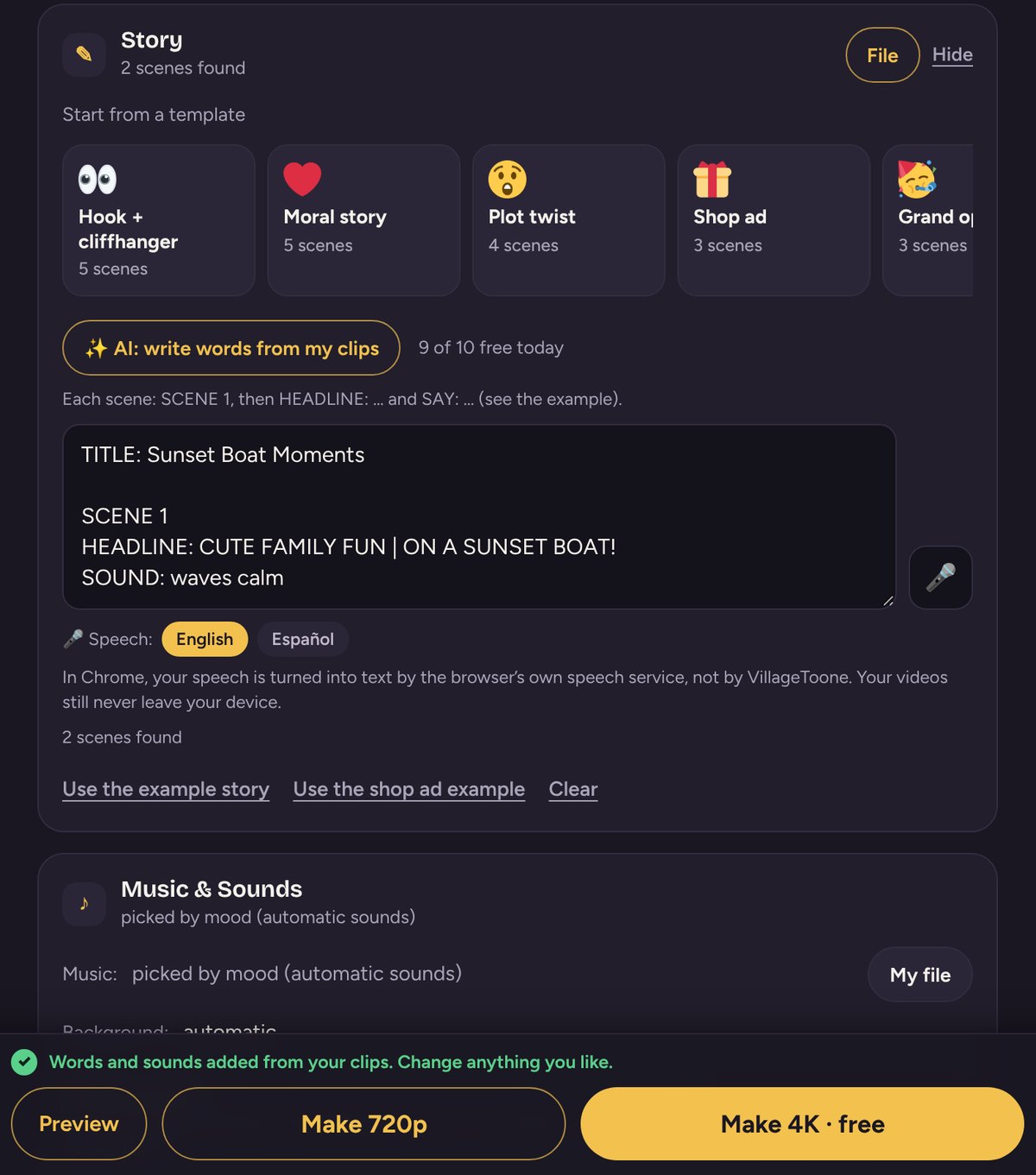
    In the Story box, tap ✨ AI: write words from my clips. The studio takes a picture from the middle of each clip (two from a clip longer than six seconds), and the AI writes these into the Story box:

    • a title for the video,
    • a two-line headline for each clip,
    • a short spoken line for each clip, shown as a speech bubble,
    • a closing question,
    • sounds for each clip, picked from our own sound library.

    Members get 10 free tries a day, and the line under the button shows how many are left. A try that fails is not counted, and AI words never uses credits. It writes in nine languages, including Bangla, Spanish and Hindi.

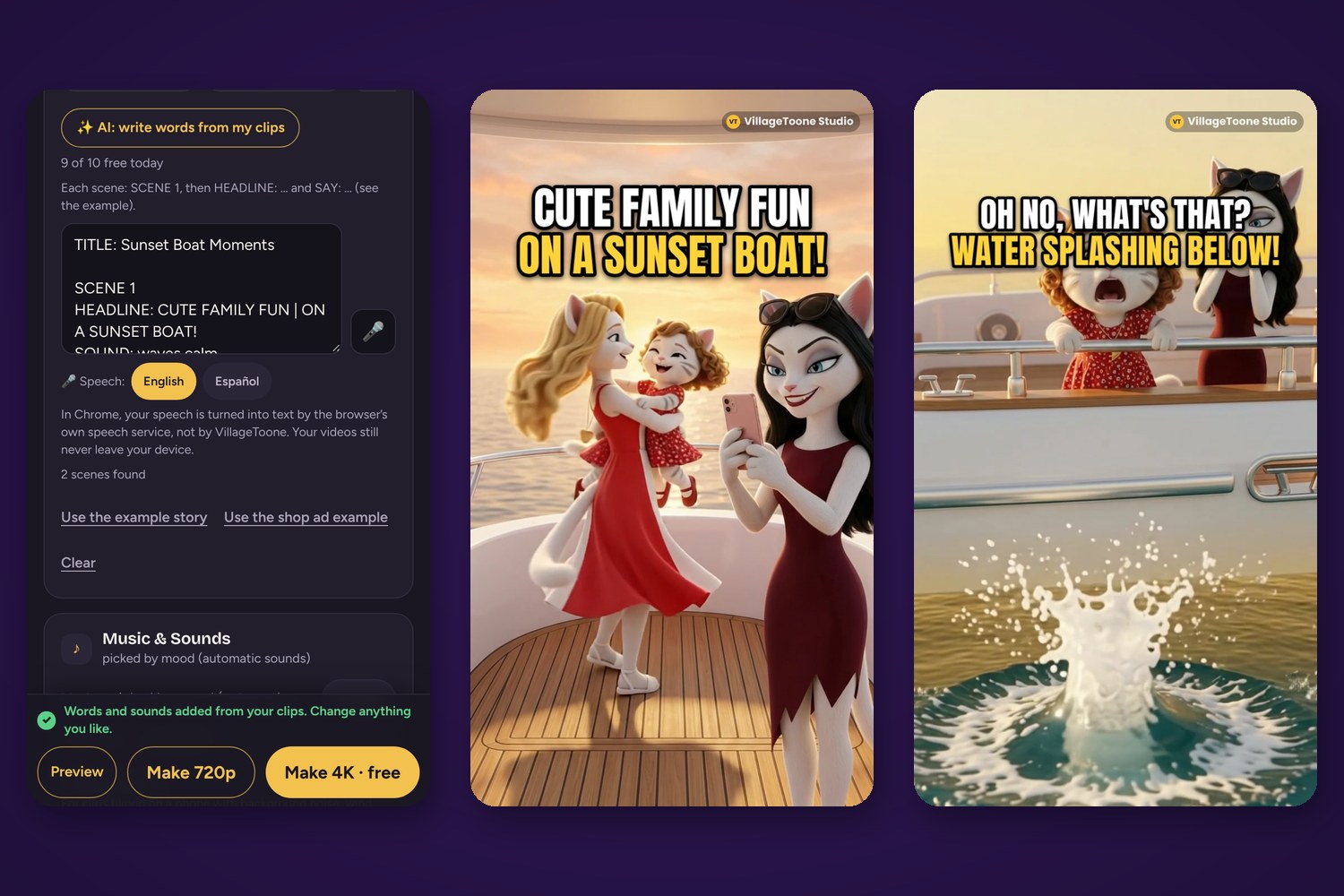
    Our first clip shows a family of cats hugging on a boat at sunset. In the second, a little one stares at a splash in the water. For those two clips the AI wrote:

    • Title: Sunset Boat Moments
    • Clip 1: CUTE FAMILY FUN | ON A SUNSET BOAT!
    • Clip 2: OH NO, WHAT’S THAT? | WATER SPLASHING BELOW!
    • Sounds: calm waves, then a splash
    The Story box in VillageToone Studio after AI words: the title Sunset Boat Moments, the first clip's headline and sound, 9 of 10 free tries left today, and the Make 720p and Make 4K buttons
    The words land in the Story box, where you can change any of them.

    Step 3: Change anything you like

    The words are plain lines of text, so you can edit them like any other text. A headline has two parts split by a straight line ( | ): the first part sets up, the second pays off. Keep the lines that work and rewrite the rest in your own voice. For a different version, tap the AI button again; that counts as another try.

    If you press Make while the Story box is empty, or still holds our example story, the studio asks first: let AI write words from your clips, make the video without words, or write your own. Your video never gets someone else’s example words by accident.

    Step 4: Add a voice or captions (optional)

    Want the lines spoken? Pick one of 60 voices: American accents from 12 regions, British, Latin American Spanish and Hindi (beta). A voice reads each speech bubble. The voices download to your browser once, which usually takes under a minute on Wi-Fi.

    Prefer words on screen? Turn on Captions. The words appear while they are spoken, in place of the speech bubbles, and on Auto they move so they never cover a face.

    Step 5: Check the music and sound

    The sounds that AI words chose are already in place, and the studio picks music by the mood of your story. To use something else, open Music & Sounds. All the music and sounds are our own, made for VillageToone Studio.

    Step 6: Preview, then make it in 4K

    Press Preview for a quick look. When you like it, press Make 720p (quickest) or Make 4K · free, then Save video. 4K never uses credits: the editor upscales any clip to 4K when you save it. On an iPhone, Save video usually opens the share menu; choose Save Video there to put it in Photos.

    Our two clips became this 9.5-second reel (turn the sound on):

    Made in VillageToone Studio from two 4-second clips. Free videos carry the small VillageToone Studio mark in the corner.

    Tips for reels people watch to the end

    • Ask the question early. A headline like “OH NO, WHAT’S THAT?” makes people stay for the answer.
    • Keep each headline part short. If a part runs past five or six words, cut it.
    • Let sound tell what the picture can’t. A splash, a door or a crowd makes a clip feel real.
    • One idea per clip. Trim or split a clip that shows two things.
    • End with a question. A closing question such as “What would you do?” gives people a reason to comment.

    What it costs

    • Editing, voices, music, saving and 4K export are free and never use credits.
    • AI words: 10 free tries a day for members.
    • AI clips and AI pictures use credits, and the Make button always shows the price before you start.
    • Free videos carry a small VillageToone Studio mark. The founding lifetime pass ($59 once, only 100 passes, until Nov 30, 2026) and Pro ($9.99 a month) remove it. See plans and prices.

    About your clips: the video is made in your own browser, and your clips stay on your device. When you tap AI words, the studio sends one or two small pictures from each clip to Microsoft’s AI service so it can write the words. We do not store them. Read more in our privacy policy.

    Your first reel takes a few minutes: add two or three clips, tap the AI button, change what you want and save it in 4K. If your clips are AI clips, our 7 rules for AI video prompts help them move better.
  • 7 Rules for AI Video Prompts That Really Move

    7 Rules for AI Video Prompts That Really Move

    Most disappointing AI clips fail in the same few ways. The movement is slow and floaty, as if everything is underwater. Two things happen at once and both smear. Or a stranger walks into an empty shop that was supposed to stay empty.

    We make short AI clips every day for our own story pages and for VillageToone Studio, and we keep a list of what goes wrong. These seven rules come from that list. They apply to most image-to-video models, and the studio’s own motion helper follows most of them.

    Rule 1: Make the start picture the moment just before the action

    In image-to-video, the first frame does most of the work. If the picture already shows the jump, the model has nothing left to animate, so it adds wobble instead.

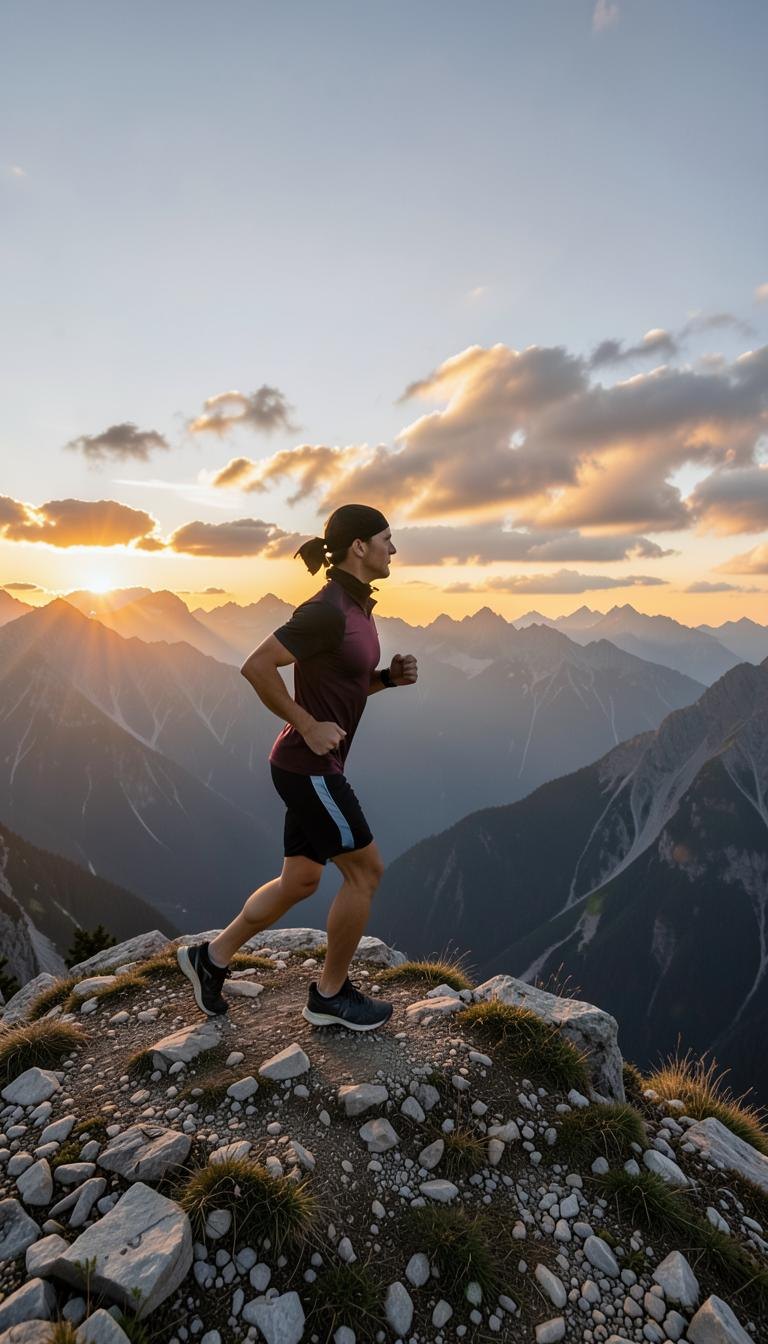
    Show the setup instead: the cat crouched at the edge of the counter, the runner leaning into the first stride, the cake with its candles freshly lit. Add a clue to what comes next, like bent knees, a raised paw or a hand reaching for the box. The video then does the action.

    A runner on a mountain ridge at sunrise, caught mid-stride before the sprint
    The start picture shows the moment just before the sprint.

    Rule 2: One main action per clip

    Five seconds holds one clear movement. “The dog runs to the door, opens it and jumps into the car” is three clips. Pick the one that matters and make it big and readable. Background details like steam, leaves or flickering candles are fine as long as they stay in the background.

    Rule 3: Use strong verbs and say the result

    Weak verbs give weak motion. Compare “the puppy plays in the park” with “the puppy bounds toward the camera across the grass, ears flopping, paws thumping the turf”. The second version names the action (bounds), the path (toward the camera, across the grass) and the result (flopping ears, thumping paws). The model has something physical to draw.

    Rule 4: Put times on it, and hold the end

    Models pace an action better when you tell them when it happens. Write “at 1 second” or “by 3 seconds” for the key beats. Then end on a held pose for the last second, like a cat sitting with its tail flicking or a cup set down. A clip that settles reads as finished. One that is still moving at the cut feels like a mistake, and a held end also makes the clip easy to join to the next one.

    Rule 5: One camera move, or a fixed camera

    Choose exactly one: a push in, a slide to the right, an orbit, or “fixed camera”. Two moves fight each other, and moves into empty space cause trouble (see the before-and-after below). For product shots and small spaces, a fixed camera is often the strongest choice. Let the subject move instead.

    Rule 6: Give it real weight

    Ask for contact and gravity: feet hit the ground, things that fall land, hair and cloth settle after a move. Ending a prompt with “real-time speed, real weight and gravity” helps more than any style word. Weightless motion is the biggest tell that a clip is AI.

    Rule 7: Save soft words for the background

    Words like floating, drifting, gracefully, dreamy and slow motion turn a main action into mush. Keep them out of anything your character does. They are fine for confetti or snow in the background. Also, don’t describe looks in the motion words. The picture already shows the fur color, the outfit and the room. Spend your words on what moves.

    Before and after: three real fixes

    These are real prompts from our own template set. The first versions produced the problems described. The rewrites fixed them on the next take.

    Home tour.

    Before: “Smooth slow walk-through, the camera moves forward into the living room, sheer curtains move in a soft breeze.”

    What happened: the camera pushed into the curtains, and a ghostly woman appeared.

    After: “The bright, empty living room in the afternoon sun: the leaves of the green plants beside the white sofa sway softly in a light breeze, and warm sunlight patterns move slowly across the wooden floor. The camera slides slowly to the right, keeping the whole room in view.”

    Why it works: the camera no longer flies into empty space, and the only moving things are named.

    Birthday.

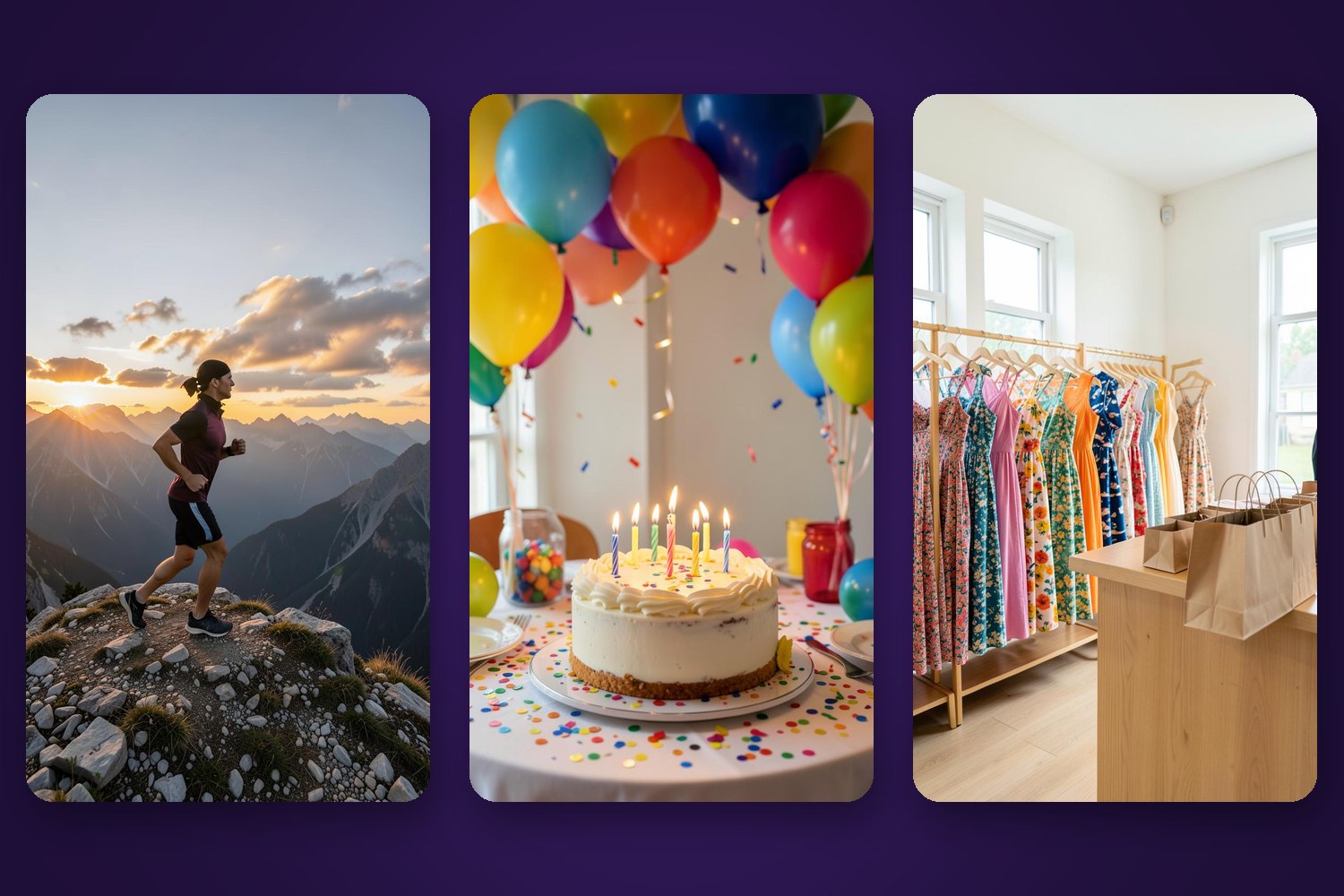
    Before: “The candle flames flicker, colorful confetti falls slowly, balloons sway gently, slow push in on the cake.”

    What happened: a smeared figure of a man formed over the cake.

    After: “Close-up of the birthday cake on the party table: the little candle flames flicker and sway, small pieces of colorful confetti drift slowly down through the air, and the bright balloons above bob gently. Static camera; only the flames, the confetti and the balloons move.”

    Why it works: “static camera” removes the push into the empty space behind the cake, and “only the flames, the confetti and the balloons move” tells the model nothing else should appear.

    A birthday cake with lit candles under colorful balloons, the clean retake of the Birthday template
    The Birthday template after the rewrite: only the flames, the confetti and the balloons move.

    Shop sale.

    Before: “The camera glides slowly past the racks, the dresses sway gently, sunlight moves across the shop.”

    What happened: a man with a camera walked into the shot.

    After: “A quiet, empty clothing boutique in soft daylight: the colorful summer dresses on the wooden racks sway gently on their hangers, and warm sunlight slowly brightens across the wooden floor and the shopping bags on the counter. Static shot; only the dresses and the light move.”

    Why it works: “quiet, empty” plus “only the dresses and the light move” keeps people out without ever writing a “no people” line.

    An empty clothing boutique with summer dresses on wooden racks, the clean retake of the Shop sale template
    The Shop sale template after the rewrite: an empty shop, and nobody walks in.

    One prompt, rewritten with all seven rules

    A typical first try: “A cute cat gracefully floating jump onto the table, cinematic, slow motion.”

    Rewritten: “The orange cat crouches on the floor, then springs onto the kitchen table at 1 second; its paws land and skid on the wood by 2 seconds; it sits up, tail flicking, and holds the pose for the last second. Fixed camera. Real-time speed, real weight and gravity.”

    That is one action with strong verbs and timed beats, a held end, one camera choice and real weight. The start picture for it shows the cat crouched and looking up at the table.

    Let the studio do it for you

    In VillageToone Studio you can type a short idea in your own words, even in another language. Tap Make my prompt better and the studio turns it into a full prompt that you can read and edit before you make anything. Or leave Auto-detail on: when you tap Make, a short idea becomes a detailed scene by itself, and Undo brings your own words back. When you turn one of your AI pictures into a clip, the motion helper writes motion words that follow these rules. The prompt helpers are free to use, with a daily limit.

    Not sure where to start? Pick one of the templates on our home page and change the words.