
You have a few clips: a boat ride at sunset, the kids at the park, a new product on your shop counter. On their own they are just clips. The short videos people stop scrolling for add three things: a headline that makes you want to see what happens, words or a voice that carry the story, and sounds that match what is on screen.
This guide shows how to add all three with Story Reel in VillageToone Studio, free in your browser, and save the finished video in up to 4K. We tested every step with two four-second clips from one of our own cat stories, so the pictures and the video below are the real result.
What you need
- A few short clips. Phone videos and AI clips both work. Tall (9:16) clips suit Reels, Shorts and TikTok.
- A free VillageToone account. Sign in with Google or your email. No card needed.
- A computer or phone with an up-to-date browser. The video is made on your own device, and your clips are not uploaded to our website.
Step 1: Add your clips
Open the studio, choose Story Reel and press Add clips, or drop the files onto the page. The studio orders the clips by the numbers in their file names; use the arrows under each clip to move it. Put them in the order the story happens.
Three to six seconds a clip keeps a reel moving. If one clip shows two different things, its headline can only talk about one of them, so trim or split it.
Step 2: Let AI write the words from your clips
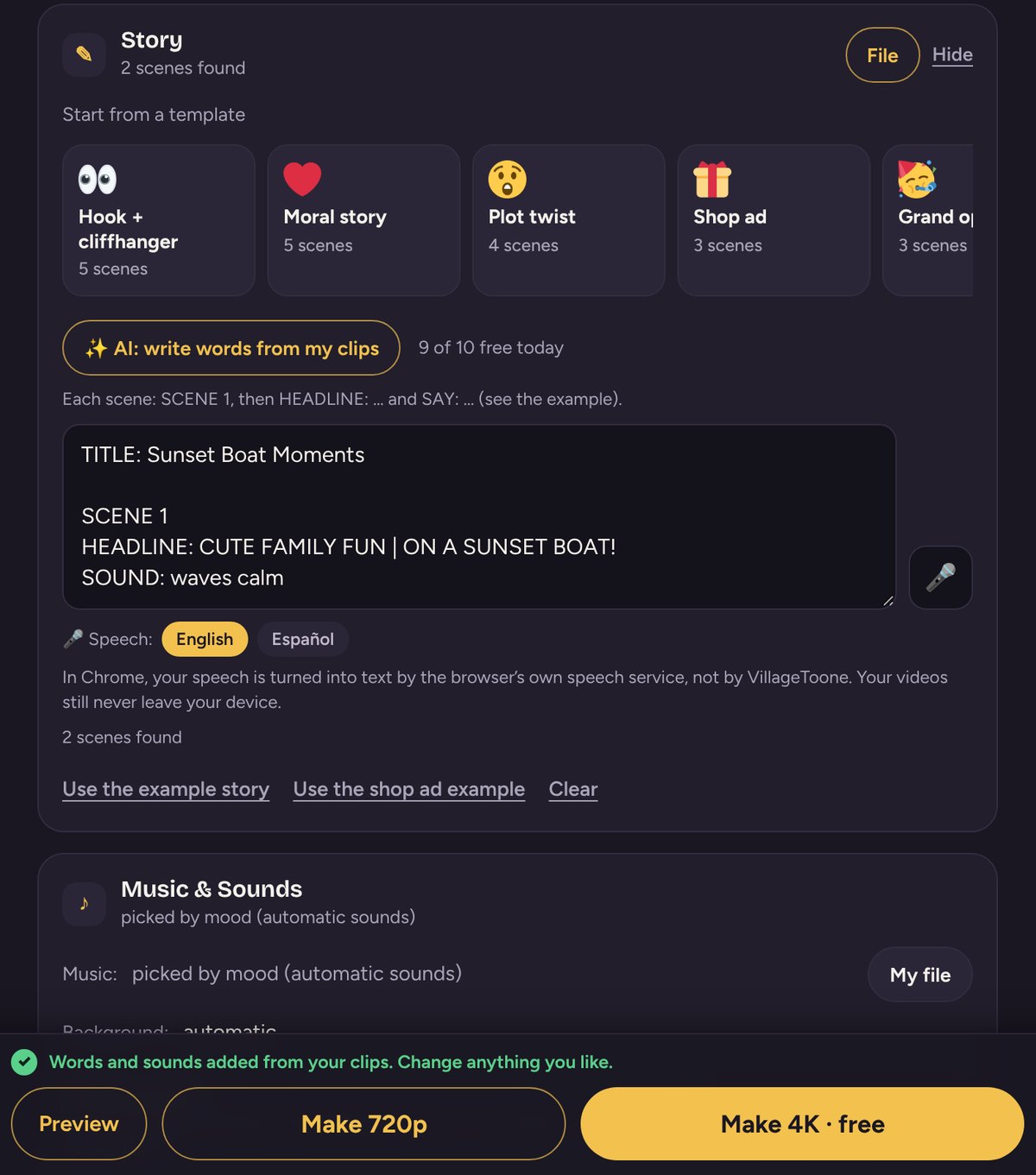
In the Story box, tap ✨ AI: write words from my clips. The studio takes a picture from the middle of each clip (two from a clip longer than six seconds), and the AI writes these into the Story box:
- a title for the video,
- a two-line headline for each clip,
- a short spoken line for each clip, shown as a speech bubble,
- a closing question,
- sounds for each clip, picked from our own sound library.
Members get 10 free tries a day, and the line under the button shows how many are left. A try that fails is not counted, and AI words never uses credits. It writes in nine languages, including Bangla, Spanish and Hindi.
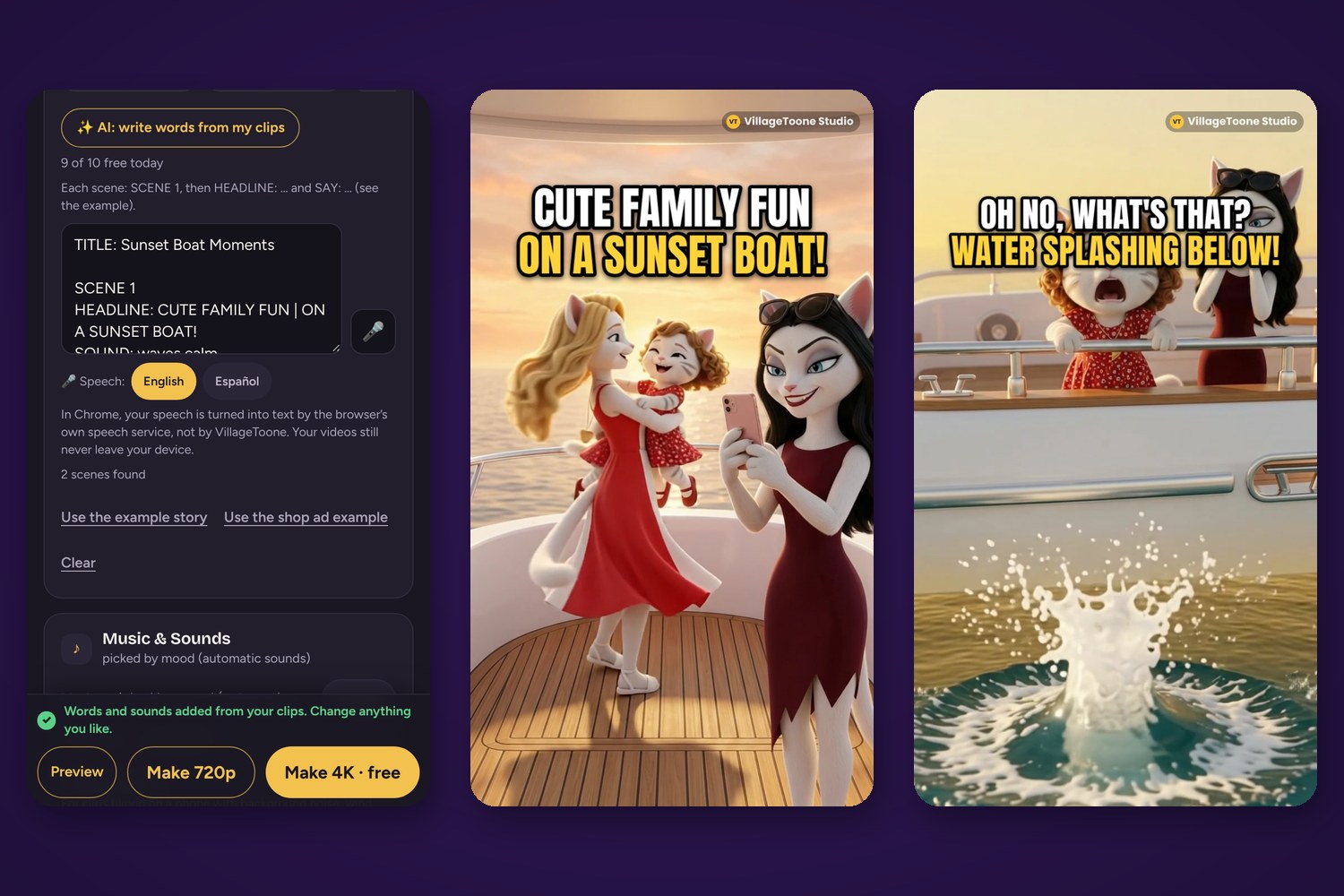
Our first clip shows a family of cats hugging on a boat at sunset. In the second, a little one stares at a splash in the water. For those two clips the AI wrote:
- Title: Sunset Boat Moments
- Clip 1: CUTE FAMILY FUN | ON A SUNSET BOAT!
- Clip 2: OH NO, WHAT’S THAT? | WATER SPLASHING BELOW!
- Sounds: calm waves, then a splash
Step 3: Change anything you like
The words are plain lines of text, so you can edit them like any other text. A headline has two parts split by a straight line ( | ): the first part sets up, the second pays off. Keep the lines that work and rewrite the rest in your own voice. For a different version, tap the AI button again; that counts as another try.
If you press Make while the Story box is empty, or still holds our example story, the studio asks first: let AI write words from your clips, make the video without words, or write your own. Your video never gets someone else’s example words by accident.
Step 4: Add a voice or captions (optional)
Want the lines spoken? Pick one of 60 voices: American accents from 12 regions, British, Latin American Spanish and Hindi (beta). A voice reads each speech bubble. The voices download to your browser once, which usually takes under a minute on Wi-Fi.
Prefer words on screen? Turn on Captions. The words appear while they are spoken, in place of the speech bubbles, and on Auto they move so they never cover a face.
Step 5: Check the music and sound
The sounds that AI words chose are already in place, and the studio picks music by the mood of your story. To use something else, open Music & Sounds. All the music and sounds are our own, made for VillageToone Studio.
Step 6: Preview, then make it in 4K
Press Preview for a quick look. When you like it, press Make 720p (quickest) or Make 4K · free, then Save video. 4K never uses credits: the editor upscales any clip to 4K when you save it. On an iPhone, Save video usually opens the share menu; choose Save Video there to put it in Photos.
Our two clips became this 9.5-second reel (turn the sound on):
Tips for reels people watch to the end
- Ask the question early. A headline like “OH NO, WHAT’S THAT?” makes people stay for the answer.
- Keep each headline part short. If a part runs past five or six words, cut it.
- Let sound tell what the picture can’t. A splash, a door or a crowd makes a clip feel real.
- One idea per clip. Trim or split a clip that shows two things.
- End with a question. A closing question such as “What would you do?” gives people a reason to comment.
What it costs
- Editing, voices, music, saving and 4K export are free and never use credits.
- AI words: 10 free tries a day for members.
- AI clips and AI pictures use credits, and the Make button always shows the price before you start.
- Free videos carry a small VillageToone Studio mark. The founding lifetime pass ($59 once, only 100 passes, until Nov 30, 2026) and Pro ($9.99 a month) remove it. See plans and prices.
About your clips: the video is made in your own browser, and your clips stay on your device. When you tap AI words, the studio sends one or two small pictures from each clip to Microsoft’s AI service so it can write the words. We do not store them. Read more in our privacy policy.
Your first reel takes a few minutes: add two or three clips, tap the AI button, change what you want and save it in 4K. If your clips are AI clips, our 7 rules for AI video prompts help them move better.